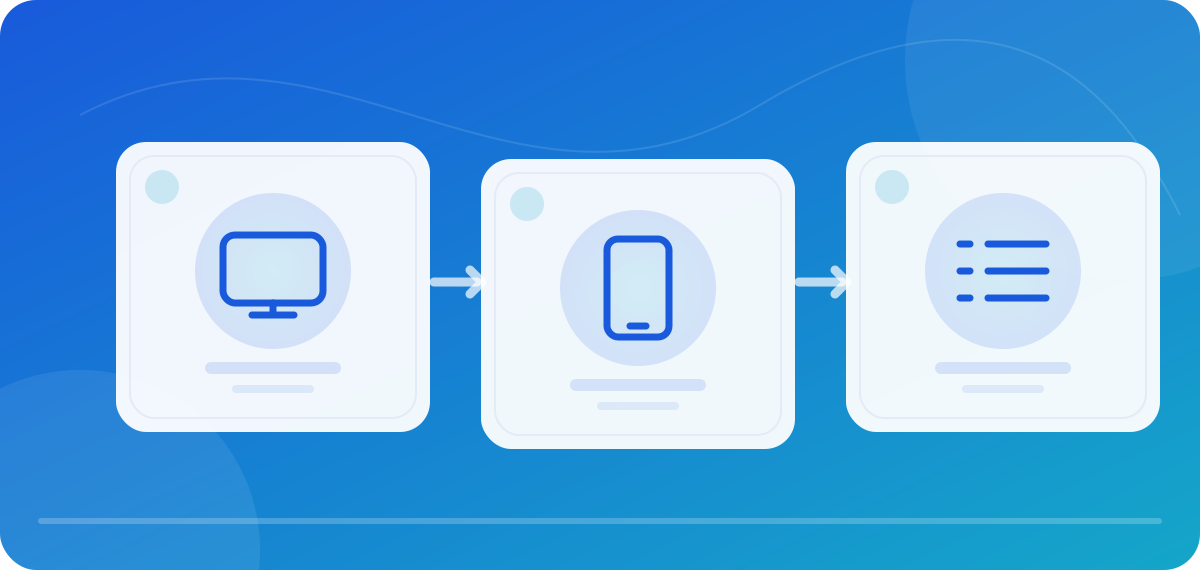
A player can have excellent reviews and still be the wrong choice for your TV. The first filter should therefore be your device’s operating system, not a ranking. A Samsung TV running Tizen cannot install an Android TV app from Google Play. A 2025 Fire TV Stick 4K Select running Vega OS is not an older Fire OS stick. And an app that feels great on a phone may be awkward to control with a remote. This comparison helps you narrow the options to two or three sensible candidates based on the device you already own. Then you can try them with your own source, provided you are entitled to use it, and see which works best in everyday use. No player supplies TV channels or grants rights to content by itself.
Start with your device, not a winner
On Android TV and Google TV, TiviMate is a natural candidate: its Google Play listing mentions remote control, an electronic program guide, multiple playlists, favorites and recording. It explicitly says the app is not optimized for touch devices. If you use an iPhone or Apple TV, UHF and IPTVX are more natural options. UHF focuses on Apple devices; IPTVX now also offers Android versions and a separate route for compatible Fire OS devices. On Windows, Linux or macOS, VLC offers a free, flexible way to open network streams, but it does not replace a polished TV guide interface. Always check current store availability on your specific device and in your region.
| Your device | Candidate to try first | Why | Check before installing |
|---|---|---|---|
| Android TV or Google TV | TiviMate, IPTVX, VLC | Remote control and a program guide matter | Play Store listing on this device, cost of paid features |
| Apple TV | UHF, IPTVX, VLC | tvOS app and TV-friendly controls | Supported tvOS version and actual feature set |
| iPhone or iPad | UHF, IPTVX, VLC | Touch, search and switching on the go | Device version, subscription terms, synchronization |
| Fire TV with Fire OS | IPTVX or available store apps | Android-based platform, but a separate installation route | Model, operating system and official source |
| Fire TV with Vega OS | Apps in the device’s own store | An Android APK guide does not apply here | Exact model and Vega app selection |
| Samsung or LG Smart TV | App in the manufacturer’s store | Tizen or webOS rather than Android TV | Model year, region and store selection |
| Computer | VLC, IPTVX on supported Macs | File formats and window-based controls | Operating system and whether you need an EPG |
What TiviMate does well—and where it does not fit
TiviMate is built for the large Android TV screen. The remote takes you through categories, channel lists and the program guide without needing a mouse pointer. If you need to manage several playlists of your own, favorites and a clear grid of programs, it is worth trying. The official store listing also mentions catch-up, recording and multiview. Check the current store and the app before buying to see which features are available without an upgrade in your version. Recording also depends on your device, storage, source and rights; seeing a menu item does not guarantee that a recording will work.
The main drawback is device compatibility. TiviMate will not help on an iPhone or an LG TV that does not run Android TV. Even on an Android phone, its TV interface is not a useful touch-friendly replacement. If you only occasionally open one permitted stream address, you may not need a complex channel manager. If no channels appear after installation, the reason is usually simple: the app does not include a playlist. Our TiviMate setup guide starts with that step and explains the differences between the channel list, EPG and favorites.
IPTVX: broad platform coverage with separate ways to get it
According to its official FAQ, IPTVX has apps for Apple TV, iPhone, iPad, Apple-silicon Macs and Android devices. For compatible Fire OS devices, the provider describes a separate signed APK; it does not claim an Amazon Appstore listing there. That distinction matters: an Android version from Google Play is not automatically approved for Vega OS. The FAQ says Apple and Google purchases each apply to their own store family. If you use devices from both ecosystems, read the subscription terms before paying instead of assuming one purchase covers every platform.
Its strengths include a library view, multiple playlists, search and organization tools, and a program guide. That may appeal to a family using several devices. It does not necessarily make the choice free or simple: start by adding one familiar playlist and check whether channels, the guide and favorites remain clear on your main device. For Fire OS, use only the official installation route; do not download supposedly modified APKs from download portals. The absence of an Amazon Store app is no reason to trust unclear third-party sources.
UHF: especially worth checking in Apple households
UHF positions itself on its official website for iPhone, iPad, Apple TV and Mac. Its focus on Apple’s interaction patterns can feel comfortable if you search on an iPhone in the morning and watch on Apple TV in the evening. The product lists EPG, search, AirPlay, Chromecast and other features. Still, check what is included for free and review current App Store pricing: some convenience features may require an upgrade. An app subscription does not include channels either. First try your own permitted source and see how easy it is to create favorites and whether program times are correct.
I would not recommend UHF for Samsung, LG or a Fire Stick based only on a name in a comparison. The official product page targets Apple devices; claims about other platforms on third-party sites are no substitute for a manufacturer statement or an actual store listing. If you switch platforms later, check whether your purchase and data move with you. Keep those costs separate from the TV service itself. A low-cost player stops being cheap if you have to pay twice for different platforms.
VLC: a free all-rounder with a different control style
VLC is a practical comparison option. VideoLAN documents support for Android TV and Apple TV; desktop versions are part of the project as well. If you want to test one local file or network address, VLC can quickly show whether the format can be played at all. That can help diagnose a problem: if a permitted source works in VLC but not in your preferred app, it is worth checking that app’s import and decoder settings. If it works nowhere, the app is less likely to be the only cause.
That does not automatically make VLC the best everyday live-TV player. Managing a large channel list with categories, convenient EPG mapping, favorites and remote-control workflows is a different use case. Compare that experience on your actual device instead of assuming that features in a desktop description also apply to the TV app. Its price advantage and broad format support are strong; a dedicated TV interface may matter more if you watch often.
Compare the same source with the same five tasks
For every candidate, use a small example playlist with the same channels, and make sure you are legally entitled to use it. Do not put private credentials in screenshots or public testing services. Test these tasks in order: importing the playlist, finding a channel, opening the EPG, adding a favorite and returning to the last channel watched. Repeat the steps with the remote or phone you actually use. An app that looks elegant in someone else’s screenshot can be slow or awkward with your list. Write down the steps instead of relying only on a first impression.
Then check three limits. First, are EPG times correct, or is the time zone or channel mapping wrong? Second, which features are free, which require ongoing payment and which devices are covered by a purchase? Third, can you back up the playlist and settings without leaving passwords exposed? A free trial tells you more than a generic top-ten list. Our M3U and EPG guide can help with data problems; the EPG checker examines a local XMLTV file without uploading it.
A sensible choice for four common situations
For Android TV with a remote and daily live TV, start with TiviMate and compare one other app available on that device. In an Apple TV household, try UHF and IPTVX with the same tasks; VLC remains a useful cross-check for individual streams. On an Android phone, start with an app explicitly designed for touch instead of a TV interface. On a computer, VLC is a solid first step before paying for a larger library view. With Fire TV, first identify the exact model: Fire OS and Vega OS require different routes.
Claiming that one app wins on every device would be misleading. A better recommendation comes from a repeatable test on your main screen. If the guide matters more than artwork, give the program overview greater weight. If several family members watch, check favorites and profiles. If cost is decisive, compare the player, TV service, hardware and possible add-ons separately. Only then can you decide which app is the best IPTV player for you.
Frequently asked questions about IPTV player comparisons
Which IPTV player is best for a Smart TV? It depends on the TV’s operating system. Samsung Tizen, LG webOS, Android TV, Fire OS and Vega OS have different app selections. Open the store on the specific device and look for the app there. Then weigh remote-control and EPG usability more heavily than a general ranking.
Does an IPTV player automatically include channels? No. The players compared here are tools for playing and organizing your own permitted sources. Paid app features do not replace a TV service or the right to use content.
Are IPTVX and UHF the same? No. Both may be options for Apple users, but they come from different providers and have their own features, accounts and prices. Check the purchase route and subscription terms separately.
Do I have to pay straight away? No. First check device compatibility, free features and your test tasks. Prices and promotions change; the current store listing on the day you decide is authoritative.