
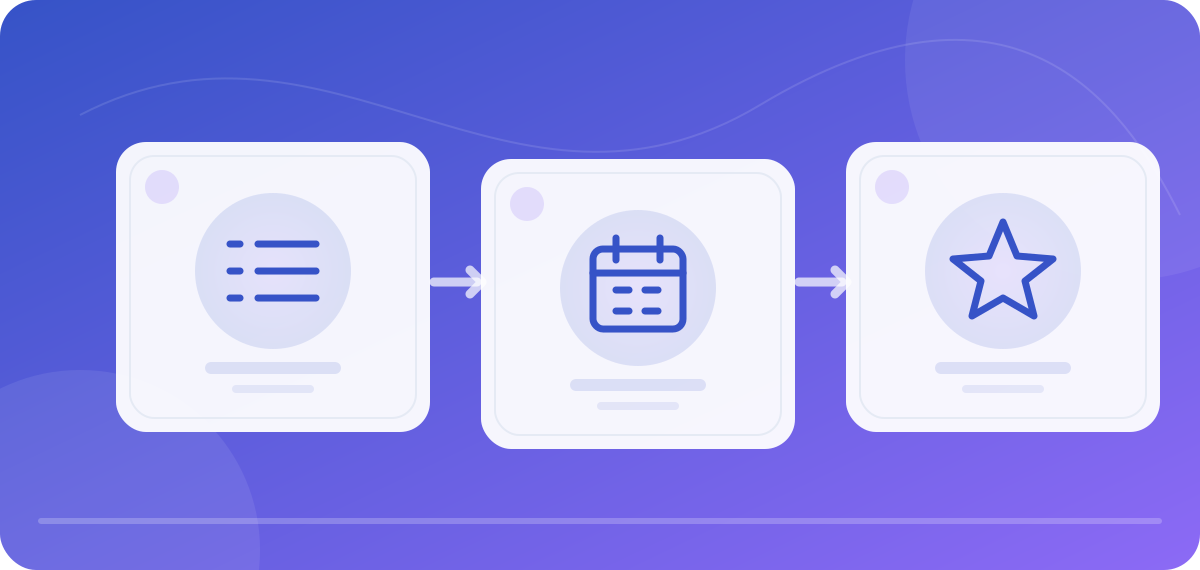
Have you installed TiviMate but still see no channels? That is the expected starting point. The app is a player, not a TV subscription. Its official Google Play listing says it does not provide content; you need to add your own playlist, which you must be entitled to use. This guide takes you from an empty screen to an organized channel list. After each section, it explains what you should see on screen. Exact menu names can change with the app version and device language. App screenshots must not expose credentials, so the process graphic on this page is explicitly an original schematic illustration, not a claimed live screenshot.
Before you start: keep the device, source and data separate
TiviMate is designed for Android TV and remote control. According to its store description, its interface is not optimized for touch on a phone. Open Google Play on the TV, search for “TiviMate IPTV Player” and confirm the official publisher in the store. On a Fire TV device, also check the exact operating system: a Fire Stick running Vega OS is not an Android TV device, and a Fire OS guide does not automatically apply. Our Fire TV model guide explains the differences. Avoid unknown APK collections and installation codes.
Have three things ready: a permitted M3U URL or file, or the Xtream details explicitly provided by your service; a separate EPG source, if one is available; and your remote. Do not write a full URL containing an access token on a piece of paper that could be left out. A small legal list is enough for a functionality test. If you only want to watch an official livestream in a browser, you may not need a playlist app at all; our overview of free official livestreams can help you decide.
1. Add a playlist: choose the right input type
On first launch, TiviMate will usually guide you through playlist setup. Choose the type that your source actually provides. M3U is a list of channel names and stream addresses. An Xtream login typically consists of a server address, username and password; the app uses these to create the list. A Stalker portal is another, different route. Do not convert details by guesswork. If your provider gives you only an M3U file, do not enter a random server address in the Xtream field. For permitted get.php M3U links, our local Xtream converter can check the format without testing a login.
Enter the address character by character or use a secure transfer kept on the device. Check https://, slashes, capitalization and accidental spaces at the beginning or end. Choose a neutral display name that does not contain credentials. Confirm the entry and wait for the first import. Large lists may take longer; repeatedly pressing Back makes it harder to identify the cause of a problem. A file must be stored somewhere the player can read on the device. With a URL, the TV itself must be able to reach the source.
What you should see now: The playlist name you chose appears in the app. At least one category or channel group is visible if your source contains entries. Empty program fields at this stage do not mean the playlist import failed. If nothing appears at all, check the input type and the exact error message before changing EPG or decoder settings.
2. Check the channel list before working on the EPG
Open a familiar category and a channel you are allowed to use. Note whether the channel is missing entirely, listed but will not play, or playing without program information. These states have different causes. If the whole list is missing, the problem comes before playback: input, permission, reachability or format. If the list is present but a stream will not start, check a second entry from the same source. This can help distinguish one broken channel from a general connection problem, but it does not prove the app is at fault.
Test only one change at a time. If you test the same permitted source on another device you already own, stop the first playback if your access allows only one connection. Never post passwords or complete playlist URLs in public forums. Our M3U validator can inspect a sanitized sample file for format issues; a valid format does not confirm that streams are online or that you have rights to use them. For interruptions, see the buffering diagnosis later.
What you should see now: You can open the category, recognize the channel you want and observe its playback status. Record any specific error message for support. If only one channel is missing, check that channel’s entry in your source instead of deleting the entire setup.
3. Connect and match the program guide (EPG)
The EPG contains program titles, times and mappings; it is separate from the channel list. Some sources include an EPG link, while others provide a separate XMLTV link. Open the playlist or EPG settings in TiviMate and check which source is assigned to this list. Add a separate link only if it was officially provided to you. Wait for the first update, then open the guide for two or three channels. An empty EPG immediately after import may simply mean that the download has not finished.
If channels play but program fields stay empty, first check the EPG update status, then the channel mapping. An M3U entry may contain a tvg-id; in XMLTV, a channel has a matching channel id. If these values do not match, the player may not be able to assign the program. The Kodi IPTV Simple Client documents this principle particularly clearly. Depending on the version, TiviMate may also offer manual mapping. Change it for one known channel and check the result before editing many entries.
If programs are shifted by an hour or more, check the device clock, time zone and the source’s time format. A blanket “EPG shift” can hide one symptom and create new errors later, especially around daylight-saving changes. Open the XMLTV file without credentials in our EPG checker: it shows time values and missing IDs, but it does not load channels or validate the entire source. Read more in setting up M3U and EPG.
What you should see now: The guide shows current and next programs for a familiar channel, with plausible times. If video plays but this guide remains empty, work on the mapping and EPG data, not the Wi-Fi speed.
4. Organize favorites for everyday use
Open a channel and use the app’s favorites feature. Repeat this with two more entries from different categories. Then switch to the favorites view and check that all three appear and open reliably with the remote. Sort them afterward, if your version allows a custom order. In large playlists, favorites are often more useful than renaming entire categories straight away. A small selection also makes later tests easier: you know exactly which channels you want to compare.
If several people share the device, separate personal preferences as far as the app supports them; do not assume profiles exist until you have seen them in your version. Keep any settings backup somewhere protected from other people. A backup file may contain playlist addresses and therefore access details. Favorites may not transfer automatically if you switch to another player. Our player comparison explains when a switch may be worthwhile.
What you should see now: A short favorites list with working channels, so you do not have to move through dozens of groups. The EPG times should look just as plausible there as in the full list.
Troubleshooting: where does it fail?
No channels after installation: This is normal until you add your own playlist. Check the input type, details and import status. Playlist will not load: Compare the protocol, complete address and reachability from the TV. Do not share the URL publicly. Channel appears, but the screen is black: Check a second permitted channel and the error message; distinguish a playback issue from an import issue. EPG is empty: First check the update, then the source, then ID mapping. Times are wrong: Check the device date, time zone and XMLTV time values. Favorites disappeared: Check that you opened the right playlist or that settings were not reset. Do not immediately clear app data: that can remove credentials and sorting.
Change one thing at a time and record the result. If a feature is available only with Premium, the current store listing or app will show the terms; a Premium purchase does not include channels. If the source cannot be used on several devices, account for a possible limit on simultaneous connections. A useful support report includes the device, app version, playlist type, time and error message—without access details. That makes the next step verifiable and saves you from blindly starting the setup again.
Frequently asked questions about TiviMate
Why does TiviMate show nothing after installation? Because the app has no channel catalog until you add your own playlist. Add a permitted source and wait for the import. Do I need Premium to get a TV service? An upgrade may add app features, but the official store listing says it does not provide channels or content. Can I use TiviMate on iPhone? The official Android TV app is not intended for that. Check the relevant store for apps suited to iPhone and Apple TV. What does a separate EPG link do? It can add program data when the list does not contain suitable information; the IDs must be mappable. Should I clear app data? Only after making a backup and understanding the consequences. For diagnosis, smaller reversible steps are usually enough.