
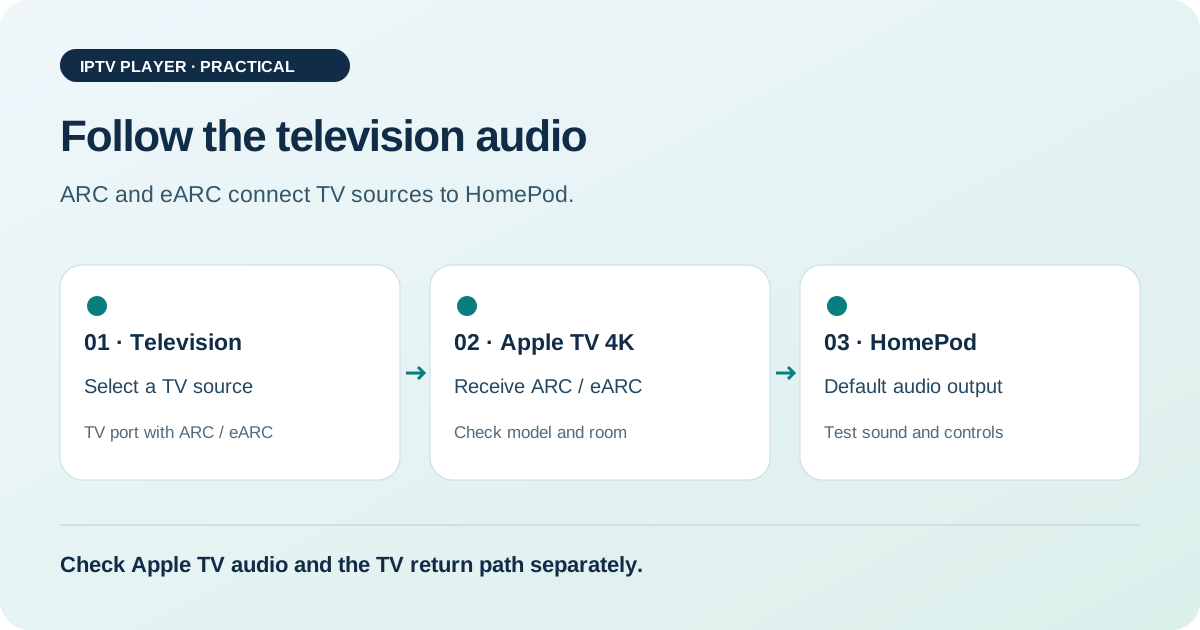
Quick answer: To route audio from other TV sources through a HomePod, you need an Apple TV 4K (2nd generation or later), a TV with ARC or eARC, and the correct HDMI port. Assign Apple TV and HomePod to the same room in the Home app, choose HomePod as the default output, then go to Settings > Video and Audio > Audio Output and enable Play Television Audio. When you see On (ARC) or On (eARC) the TV audio return path has been negotiated. Audio from Apple TV itself can also play through HomePod without ARC. If there is no sound, check the signal chain before looking at individual apps.
The signal path determines where the audio goes
During normal Apple TV playback, video travels over HDMI from Apple TV to the television. Audio can be sent directly from Apple TV to HomePod. With a game console, Blu-ray player, or TV tuner, however, the source is connected to the television first. ARC stands for Audio Return Channel: the TV sends audio back to Apple TV over the same HDMI connection. Apple TV then routes it to the HomePod selected as the default output. eARC is the newer return-channel version, with more bandwidth and support for higher-quality formats.
That explains a common misunderstanding: a HomePod cannot play any TV audio simply because it is on the same Wi-Fi network. For TV sources, the HDMI return path must work. AirPlay and ARC are not interchangeable in this setup. AirPlay can be a temporary audio output; ARC or eARC connects the television’s HDMI audio path.
Check these requirements first
Apple Support says that routing audio from other TV sources over ARC or eARC requires Apple TV 4K (2nd generation or later), a HomePod or HomePod mini, and a TV with ARC or eARC. The supported TV port is usually labelled ARC or eARC. Any HDMI port will not necessarily work. Apple TV and HomePod must also be assigned to the same room in the Home app. Apple requires current software for home theatre audio, so updating both devices is a sensible first step.
If you use two speakers, make sure the stereo pair is fully set up. HomePod mini can play TV audio, but its surround and Atmos capabilities differ from the larger HomePod. An Atmos indicator that does not appear is therefore not automatically a cable fault. First make sure ordinary test audio works; then check the format.
Set HomePod as the default output
- Open the Home app and check that Apple TV and HomePod are in the same room. If you use two speakers, also check that the intended stereo pair has been created.
- On Apple TV, open Settings > Video and Audio > Audio Output. Under Default Audio Output, choose the HomePod or stereo pair.
- Connect Apple TV’s HDMI cable to the intended port on the TV. For audio from other sources, the TV port must support ARC or eARC.
- Under Audio Return Channel select Play Television Audio. Apple describes this setting as the switch for ARC or eARC.
- Start a system menu or a short clip. Switch between the Apple TV menu and a TV source, then check whether HomePod plays both signals.
If HomePod does not appear as an option, check the room assignment before suspecting a faulty speaker. If HomePod is selectable but the return channel does not switch to On, focus on the TV port, CEC, and the HDMI connection.
How ARC and eARC differ in practice
ARC and eARC do the same basic job, but differ in bandwidth and supported audio formats. eARC requires an eARC-capable TV port and a compatible HDMI cable. The Apple TV user guide explains that Apple TV 4K (2nd generation or later) can also route audio from an HDMI device connected to the TV through eARC to HomePod. HDMI-CEC must be enabled on the television.
The label beside the port is more useful than a marketing name in a menu. Look for ARC or eARC on the TV and check its manual if the label is missing. Some TV brands use a different name for CEC. That does not by itself indicate a fault; look for the manufacturer’s term in the settings. After changing a setting, fully power the devices off and on again so they can renegotiate HDMI capabilities.
What the symptom can tell you
| Symptom | First check | Diagnostic clue |
|---|---|---|
| Apple TV menu has no sound | Default output and HomePod room | Check the default output or whether HomePod is reachable. |
| Apple TV audio works, but TV channels are silent | ARC/eARC, CEC, and TV port | The return path may be the problem. |
| Sound stops when switching sources | HDMI connection and CEC restart | The negotiation or source may be involved. |
| Only dialogue is missing | Audio track and TV sound mode | The stream or downmix may be changing the dialogue track. |
This mapping is a diagnostic aid, not a remote test. The same symptom can have several causes. After each step, record whether anything changes instead of switching cables, audio formats, and apps all at once.
A diagnosis plan you can follow
- Establish a reference: Try the Apple TV menu and a second clip. If both play through HomePod, the issue is likely specific to one source.
- Check the TV speakers: Briefly select the TV speakers. If TV audio is audible there, the source is present and the fault is more likely in the return path or default output.
- Connect directly: Temporarily remove a receiver, soundbar, or HDMI switch. Apple recommends reconnecting the cables when troubleshooting ARC; a direct connection also makes the chain easier to assess.
- Check CEC and the return channel: Enable HDMI-CEC and ARC or eARC in the TV menu. Note the exact port and the status Apple TV shows for audio return.
- Renegotiate the connection: Unplug Apple TV and the TV, reconnect both HDMI ends, then start the TV first, followed by Apple TV and HomePod. Test the same clip again.
- Isolate the source: If a TV channel works but a console does not, check the console’s HDMI port and audio output. If no TV source works, the return channel remains the main suspect.
A successful direct-connection test does not prove the receiver is faulty. It only shows that a component in the removed section is involved. Add components back one at a time and test after each step to narrow down the cause.
Check audio formats only after basic sound works
If audio plays but surround or Atmos sounds different, check the source, speaker model, and TV capabilities. Apple notes that HomePod mini does not output certain surround formats as Dolby surround. Stereo output may therefore reflect a product limitation rather than a fault. Start with a simple automatic or compatible Apple TV audio setting and compare the same section.
Avoid changing several things at once. A format change, TV update, and new HDMI switch do not tell you which change mattered. A short dialogue scene and a section with steady background audio are enough for a comparison. Note whether the issue affects one service, system sounds, or other sources too.
A quick test for everyday use
After fixing the issue, use a consistent sequence: Apple TV menu, a familiar short clip, a TV channel, then an external HDMI source. Each step checks a different part of the chain. The menu checks default output; the TV channel checks the return path; the external source checks how its audio is routed; and a volume change checks ordinary controls. If you use IPTV, also test a familiar live source and a recording, since one stream fault does not automatically point to HDMI.
We have not tested devices in your home. These steps draw on the linked Apple guides and a technical review of the signal paths. TV models, menu labels, and CEC settings can vary by manufacturer.
Picture looks right, but the stream stutters? Then check the connection with our speed test and read the guide to IPTV buffering.
FAQ: Apple TV and HomePod
Do I need extra hardware for TV audio?
To route audio from other TV sources, you need a HomePod, an Apple TV 4K (2nd generation or later), and a TV with ARC or eARC and a compatible HDMI port. This is separate from audio played by Apple TV itself.
Why do I see ARC but not eARC?
The TV, the specific HDMI port, or the cable may support only ARC. Check the port label and the TV maker’s specifications. Seeing the label alone is not a promise of a particular audio quality.
Why does audio still come from the TV when HomePod is selected?
Check the default output and make sure HomePod is in the same room in the Home app. For TV sources, also enable Play Television Audio.
Will a new HomePod fix an ARC problem?
The symptom alone cannot tell you that. First test the port, CEC, a direct HDMI connection, and a fresh negotiation. Consider replacing hardware only after checking the signal path.
Sources and review date
Sources checked on 25 October 2026. Editorial guidance; no original device measurements.