
The quick answer: Check playback info before buying a server
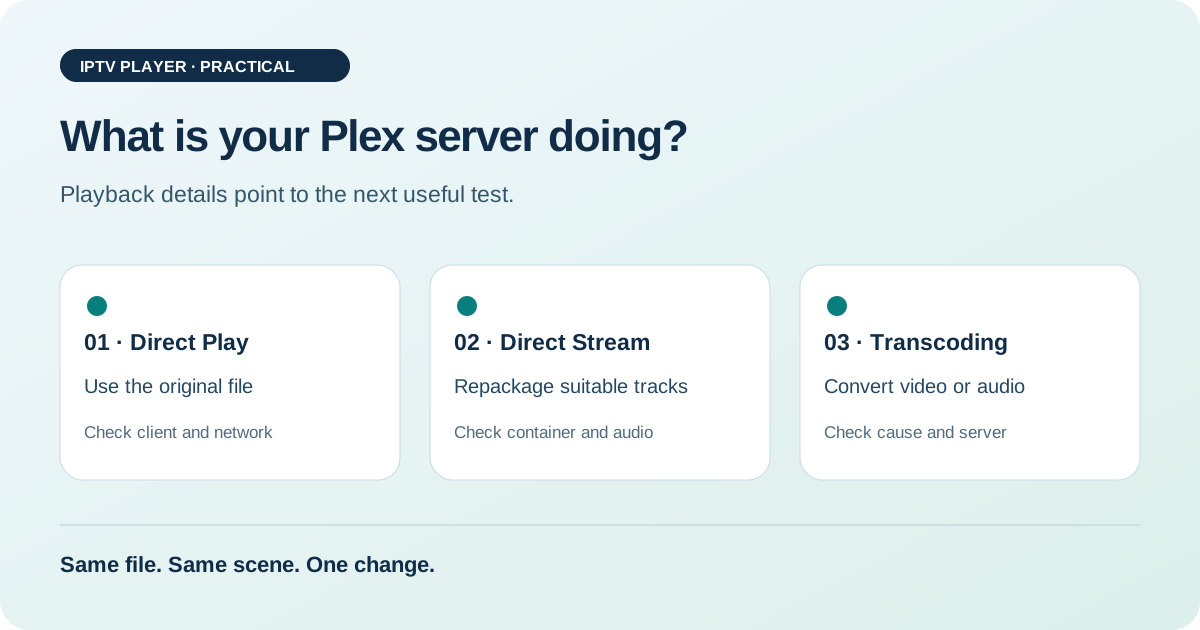
If Plex stutters on your TV, first check the playback mode actually in use. Direct Play, Direct Stream, and Transcoding place different demands on the setup. A new server is therefore not automatically the right answer. The source file, selected audio track, subtitles, capabilities of the specific app, and connection to the server all matter.
Plex describes these three paths in its official streaming overview. The steps below turn that distinction into a practical troubleshooting process for your own media library. They cover media stored on your Plex server. An IPTV player for M3U playlists and access to someone else’s streaming subscription are different use cases. This guide does not claim measurements for any particular NAS, TV, and file combination.
Direct Play: The file fits the client
With Direct Play, the client can handle the supplied file in its existing form. Among other things, the container, video format, and audio format need to fit the client’s supported capabilities. Resolution, bitrate, and the selected subtitle track can also affect the decision. A “4K” label on the TV alone is not enough to promise Direct Play for every 4K file.
The benefit is that the server does little conversion work: it does not need to recalculate the picture merely because you are watching it on a TV. The transfer still needs a sufficiently stable connection. A large file with a high bitrate can strain the home network even when the server is doing little processing. Low CPU use is therefore no proof that the entire playback chain is working smoothly.
Direct Stream: A new container, not a new picture
Direct Stream means Plex repackages compatible media components into another suitable container. This is often called remuxing. The distinction between container and content matters: the file extension alone does not describe every included video, audio, and subtitle track. Two files with the same extension can therefore behave differently during playback.
Check video and audio separately. Plex may pass through a video track unchanged while converting an unsupported audio track. A brief observation such as “Plex is transcoding” is not enough to identify the cause. Note which component is affected. The Plex explanation of Direct Play and Direct Stream describes these dependencies. It does not provide a universal format guarantee for every smart TV model.
Transcoding: When Plex actually converts media
With Transcoding, incompatible components are converted to a more suitable format or adjusted to the selected playback conditions. Plex describes this as its most processing-intensive method. The required performance depends on the source material and the requested conversion. A blanket claim such as “any NAS is enough for Plex” is as unhelpful as recommending the most expensive processor for every library.
| Mode | Processing | First thing to check when problems occur |
|---|---|---|
| Direct Play | Play the existing file directly | Client and stable transfer |
| Direct Stream | Repackage compatible tracks | Container and individual audio or subtitle tracks |
| Transcoding | Convert video or audio | Conversion trigger and server capacity |
Use this table as a guide. It does not replace the information for the current session, because the playback mode can differ from file to file in the same home.
1. Create a reproducible starting point
Choose one title and a specific point in it. Note the client device, app version, server, and whether you are connected at home or remotely. Start with one stream and check the playback information. Extra simultaneous sessions would make the comparison harder. At first, do not change the file or several quality settings at once.
Record whether video and audio are playing directly or being converted. Also note the selected audio track and subtitle type, if shown. This small note prevents a common mix-up: you might accidentally play a different language or subtitle track on the second TV and attribute the result to hardware. Keep the conditions as similar as possible for a useful comparison.
2. Test subtitles as a trigger
Subtitles are a particularly useful point of comparison. According to the Plex documentation, unsupported subtitles may be burned into the picture and trigger video conversion. This does not mean subtitles are inherently bad or that every subtitle file forces Transcoding. The specific format, app, and device combination matters.
Play the same section once with and once without the selected subtitle track. Check the playback mode in both tests. If it changes, you have found a concrete connection. Next, try another suitable subtitle track that you already have instead of immediately converting your entire media library. If the mode stays the same, test the next variable. A short smooth section does not guarantee the whole film will play smoothly, but it is a useful start.
3. Compare audio track and quality settings separately
If available, select another audio track from the same file and check the session information again. An audio format that a client cannot handle directly may need conversion. That does not automatically mean the video is also being fully recalculated. When assessing server load, distinguish an audio adjustment from video conversion.
Then check the selected playback quality. A limit can trigger an adjustment, while original quality can place different demands on the network. Do not treat original quality as a universal fix for a weak remote connection. Plex explains in its automatic quality adjustment guide that this feature applies to transcoded playback. It does not make an incompatible file directly playable under all conditions.
4. Separate home network and server load
If Direct Play is active and playback still stutters, first take a controlled look at the connection. Compare Wi-Fi with an available wired connection if your device supports both. Test at the TV’s actual location. A speed test at the other end of the house does not describe the same connection. Our connection test can be an additional check; playback itself remains the relevant real-world test.
If Plex shows video conversion, also check server load and other tasks running at the same time. The Plex server performance guide identifies format, client, and network conditions as important factors. A single CPU reading still cannot support a complete buying recommendation. A backup job, other users, or a thermal issue can distort a momentary reading. Observe what happens during your specific test session.
5. Choose the change after seeing the result
If only changing subtitles changes the mode, a suitable subtitle option is the next step. If only changing the client changes the mode, check its specific format support. If a wired connection helps while Direct Play stays the same, the home network is the more relevant place to focus. Server hardware becomes the main question only when the required conversion itself is a clear bottleneck.
You do not need to re-encode an entire library as a precaution. Keep your original files and first test an adjustment with a suitable copy. Record whether it improves playback on the client you actually use. Switching clients may make sense, but support that choice with a concrete test too. For general TV streamer selection, see the criteria in our streaming device comparison; check Plex-specific format limits as well.
Frequently asked questions about Plex and Transcoding
Is Direct Stream worse than Direct Play?
The name alone does not imply a visible loss of quality. With simple repackaging, compatible media components are retained. Check separately whether audio or video is also being converted.
Why does the same film transcode on only one TV?
Apps and devices can support different formats. Selected audio and subtitle tracks and quality settings may also differ. First compare the same file with the same tracks selected.
Do I always need a more powerful server for 4K?
No. Resolution alone does not answer that. Direct Play and demanding video conversion place different demands on the server. First check the actual playback mode and identify the bottleneck.
Is Plex a replacement for my IPTV playlist?
This guide covers your own Plex media library. It does not describe importing a TV subscription or arbitrary M3U access. For existing IPTV sources, use a suitable player and the access details provided for that service.
Start with a single file
Sources and review date
Sources checked on 25 October 2026. Editorial guidance; no original device measurements.