An IPTV player can be used on Meta Quest only if a compatible app or browser setup works on your headset; there is no published TELOS IPTV Quest version. The headset does not provide TV channels or subscriptions: you need your own lawful playlist or provider access.
This guide explains the browser, Android app and sideloading routes, how M3U and Xtream Codes setup differs from a television, and what to check if playback buffers or disconnects. Compatibility depends on the app and headset setup, so treat each route as something to verify rather than a guarantee.
Quick answer: can you watch IPTV on Meta Quest, and how?
IPTV on the Meta Quest may be possible through a browser or an Android app, but compatibility depends on the app and how it runs on the headset. TELOS IPTV is not available for Meta Quest, and this guide cannot promise that any particular player will install or work on Quest 2 or Quest 3.
An IPTV player displays content from a playlist or provider access that you supply. It does not create a subscription or provide channels. Before setting up, confirm that your source is lawful and that the chosen app accepts its format. For background on player options, see the IPTV player hub and player comparison.
There are three broad routes to consider: use a browser, run a compatible 2D Android app, or sideload an app. Each has different setup and compatibility questions. A browser may be convenient if the provider offers a suitable web interface; an Android app may require sideloading if it is not distributed for Quest. Check the app source and permissions before installing.
How Quest runs apps
Meta Quest uses an Android-based operating system, but that does not mean every Android app will run correctly on the headset. Apps may be designed for touchscreens, phones or televisions, and their layout and controls may not suit a VR environment. A successful install is not proof that login, video playback or navigation will work.
The Meta Store is the usual source for Quest apps. Some Android apps can also be installed through sideloading, which commonly involves enabling developer mode and using a compatible installation workflow. Sideloading is a general capability, not a compatibility guarantee. The app may depend on Google services, device features or controls that are not available or convenient in the Quest environment.
For IPTV Quest 3 or Quest 2, first look for an app officially offered for the headset. If considering a 2D app, check whether the developer supports the device and whether the app can be controlled comfortably. Use the Android player guide for general app setup context, while remembering that phone or tablet instructions may not map directly to Quest.
Three ways to try IPTV on Meta Quest
Choose a route based on what your content source supports and what the headset can run. A browser can avoid app installation, but a website designed for a conventional screen may be awkward in VR. A 2D Android app can offer familiar playlist controls, yet Android compatibility alone does not establish Quest support. Sideloading may be an option for apps not distributed through the Meta Store, but it adds installation steps and requires care with app sources.
| Route | Potential advantages | Checks and limitations |
|---|---|---|
| Browser | No separate player installation if a suitable web player is available; easy to try. | Confirm the site supports browser playback and your playlist type. Interface and playback behavior may vary. |
| 2D Android app | May provide playlist or provider login controls designed for app use. | Not every Android app supports Quest. Check controls, login, playback and any required services. |
| Sideloading | Can install some apps outside the Meta Store when the app and headset support the process. | Requires additional setup. Install only from a source you trust; successful installation does not guarantee stable playback. |
There is no universal best route. If your source has a web player, try the browser route first. If you already use a player app, confirm Quest compatibility with its publisher. For sideloading, make sure you understand the installation steps and can remove an app you no longer want.
Setting up M3U and Xtream Codes
M3U is a playlist format. Depending on the player and provider, setup may use a playlist URL or a local playlist file. Xtream Codes is a provider login method that typically uses server details and account credentials. The available method is determined by the player and the access supplied by your provider; a Quest headset does not make an unsupported method available.
Setup can differ from a television because a TV app may have remote-focused menus, while a Quest browser or 2D app may expect pointer, touch or keyboard input. Before importing anything, check whether the player accepts M3U, Xtream Codes, or both. Do not assume that a player accepting one format will accept the other.
- Choose a player route and confirm that it supports your headset setup.
- Check which source method it accepts: M3U playlist, Xtream Codes login, or both.
- Obtain the playlist or credentials from your own lawful provider. Keep them private.
- Enter or import the details only in the intended player, following its prompts.
- Check that categories and program information appear if your source supplies them.
- Play a permitted item and confirm that video, audio and navigation work before relying on the setup.
M3U playlist maintenance matters: if the provider changes a playlist link or its contents, the player may need the updated source. Keep a secure copy of the details you are entitled to use and avoid sharing playlist URLs publicly. If you need to inspect playlist formatting, the M3U validator may help with basic checks.
How to keep streaming stable on Quest
Buffering and connection drops can come from the wireless link, router placement, network congestion, the source, or a player that does not work well on the headset. Start with the connection: use a reliable Wi-Fi network, try a 5 GHz or 6 GHz band when available, and reduce the distance and obstacles between the headset and router. Router features and available bands vary.
Lowering playback resolution can reduce the data needed for a stream if the player offers that control and the source provides options. Close unnecessary network activity on your connection and retry the same item. A long viewing session also uses headset battery, so check charge before starting. For broader troubleshooting, see stable IPTV tips and how to fix IPTV buffering.
| Symptom | Possible cause | What to try |
|---|---|---|
| Frequent buffering | Weak Wi-Fi, congestion, or a high stream demand. | Move closer to the router, try an available 5 or 6 GHz network, and lower resolution if possible. |
| Playback disconnects | Wireless interruption, source availability, or app compatibility. | Reconnect to Wi-Fi, test another permitted item, and check the source using a supported device if available. |
| Login works but categories are missing | Playlist details may be stale or the source may not provide those categories or guide data. | Check the source details and refresh or re-import them according to the player instructions. |
| Controls are difficult to use | The app may be designed for a phone or television interface. | Try a browser or another compatible player route with controls suited to the headset. |
For a useful stability check, repeat playback from the same location and network after changing one thing at a time. Note whether the issue occurs on one item or across the source. That helps distinguish a local wireless problem from an item or app problem.
Comfort: virtual cinema, volume and headset care
A virtual cinema can make a large screen feel natural in a headset, but a 2D app or browser may place its video window differently. Adjust the viewing position and screen size to a comfortable level, and take breaks if the headset feels uncomfortable. A large virtual screen does not improve a weak connection or make an unsupported app compatible.
Set volume at a comfortable level and check the headset’s audio controls before playback. Keep lenses clean using the care method recommended for the headset, and avoid touching them with abrasive materials. Consider battery charge and comfort together when planning a longer viewing session.
TELOS IPTV and Meta Quest
TELOS IPTV is our own player. There is no published version for Meta Quest yet; one is in the works. Today TELOS runs on iPhone and iPad, on Apple TV and on Android phones and tablets. If you would like to see how the app is built, you can try it there free of charge.
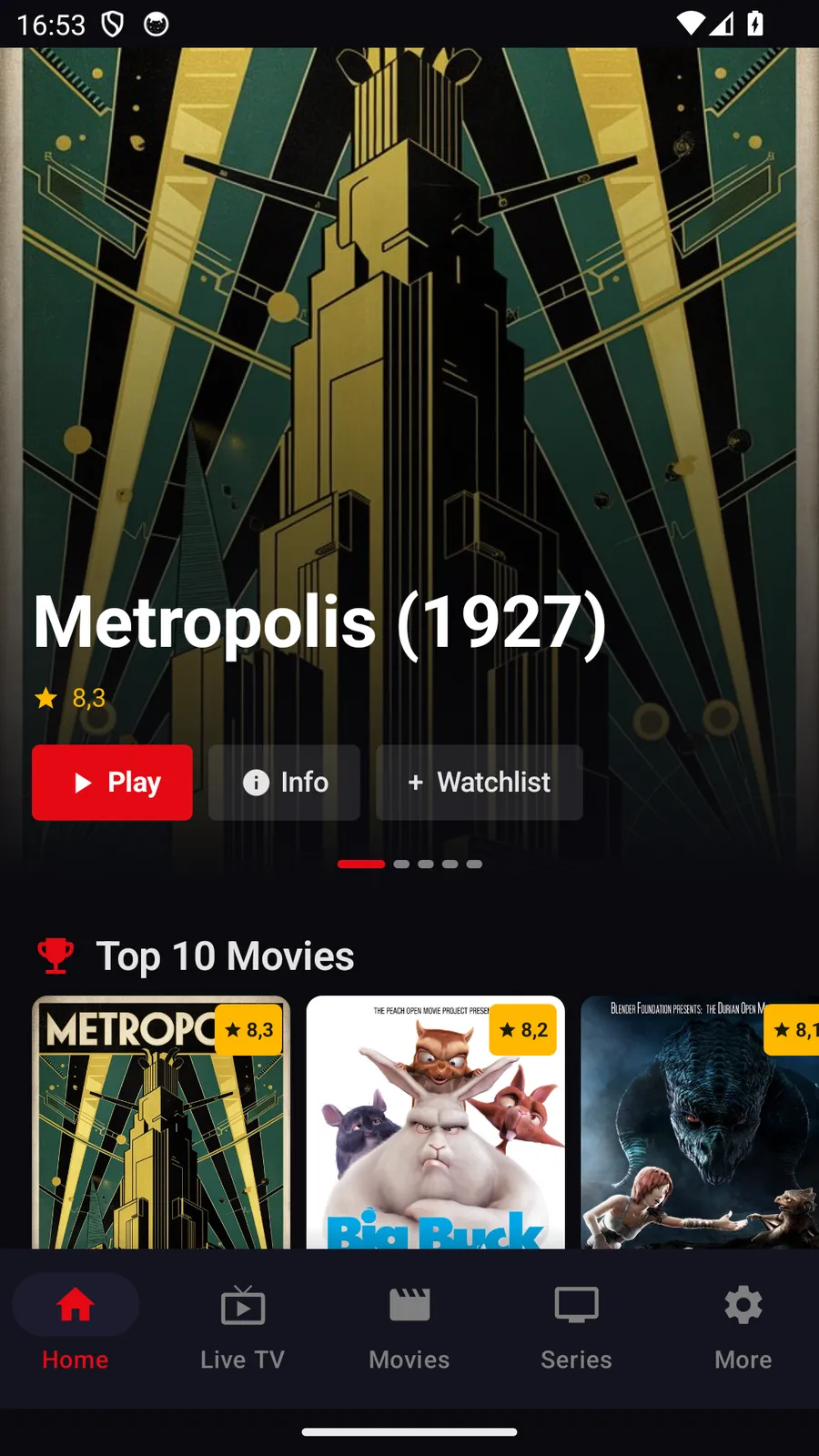
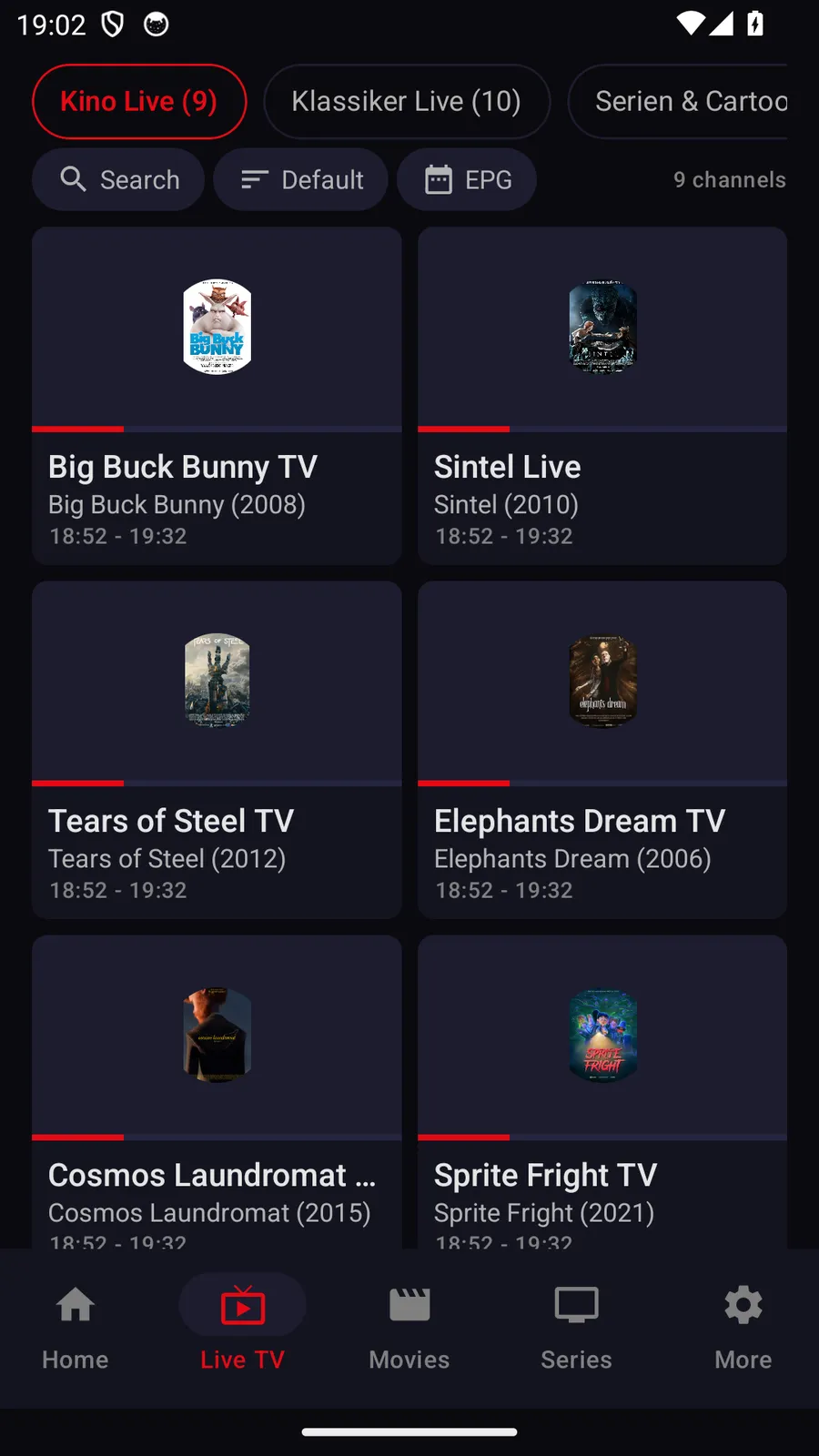
What TELOS offers on Android phones
- Provider proxy: TELOS can route requests to your IPTV provider through an HTTP proxy that you enter yourself (host, port, optional credentials). That helps if your provider is only reachable through a proxy. It applies only to requests to your provider (sign-in, programme data, images, playback), never to purchases or your account. If the setting fails, those requests fail: the app never silently connects directly.
- Downloads and offline viewing: Movies and episodes can be saved for later and watched offline; downloads can be limited to Wi-Fi. Whether a title can be saved depends on your source.
TELOS IPTV is a pure player. It contains and supplies no channels, movies, series or programme data; you need your own access from a provider and you are responsible for its lawfulness.
Safety and legal use
Use only apps from sources you trust, and review the publisher and requested permissions before installation. Sideloading adds responsibility for choosing and updating the app source. Never share your playlist URL or login details in public posts or screenshots.
Use only playlist or Xtream access that you obtained lawfully and are entitled to use. A media player does not grant rights to the material in a playlist. If a source or its licensing is unclear, do not use it. The same rule applies whether playback is through a browser, a television app, or a headset.
Frequently asked questions
Can I use an IPTV player on Quest 3?
Possibly, through a compatible browser or Android app, but compatibility must be checked for the specific app and headset setup. TELOS IPTV is not available for Quest 3.
Does IPTV work on Quest 2?
A browser or compatible app may work, but Android-based does not mean every Android app supports Quest 2. Verify installation, login, controls and playback.
Can I sideload an IPTV app?
Sideloading is a general way to install some apps outside the Meta Store, often using developer mode. Use a trusted source and do not assume that installation guarantees the app will run well.
What is the difference between M3U and Xtream Codes?
M3U uses a playlist, while Xtream Codes uses provider login details. Which one you can use depends on the player and the lawful access you have.
Why does playback buffer in the virtual cinema?
Buffering can result from Wi-Fi signal, congestion, source availability, resolution demand or app compatibility. Improve the wireless link and change one setting at a time to identify the cause.
Does TELOS IPTV include channels or subscriptions?
No. TELOS IPTV is a player and users need their own lawful provider access. It is not available for Meta Quest.
TELOS IPTV
TELOS IPTV is not yet available on Meta Quest. It currently runs on iPhone and iPad, Apple TV, and Android smartphones and tablets. On supported platforms, features vary: Android phones and tablets support downloads of eligible films and episodes for offline viewing, subject to source and title availability; this is not a Quest feature.
TELOS can route requests to your IPTV provider through an HTTP proxy that you enter yourself (host, port, optional credentials). It applies only to requests to your own provider. It is available on the supported iPhone and iPad, Apple TV, and Android smartphone and tablet versions, not Meta Quest. These features are intended to support reliable playback; they do not guarantee playback without buffering.
TELOS IPTV is a pure player. It contains and supplies no channels, films, series or programme data; you need your own access from a provider and are responsible for its legality.
Current device status of TELOS IPTV: Which platforms are available today and what works on which device is listed at telosiptv.com/devices.