The right IPTV Player Android TV app depends on your device, playlist format, guide data, and playback controls. A player displays content from access you provide; it does not supply channels or a subscription.
This guide explains how to choose and configure an Android TV IPTV Player, maintain an M3U playlist, use Xtream Codes details, and investigate buffering. TELOS IPTV is not yet available on Android TV or Google TV.
Quick answer
Choose an IPTV Player Android TV app that supports your access format, works with your remote, and lets you check playlist and guide settings. M3U is a playlist format; Xtream Codes is a provider login method. Either way, you need your own lawful access and a compatible Android TV or Google TV device.
For a stable experience, check the connection between the device and router, confirm that the playlist and guide data are current, and change playback settings one at a time. Buffering can come from the network, device, source, or decoder. A different app cannot repair every cause.
TELOS IPTV is currently available on iPhone and iPad, Apple TV, Android smartphones, and Android tablets. It is not yet available on Android TV. If you are comparing apps, start with the IPTV player comparison and then use this guide to assess television-specific needs.
Android TV, Google TV and TV boxes: what is the difference for IPTV?
Android TV and Google TV are television-oriented systems built on Android. Google TV provides a different home-screen experience, while Android TV devices may have a more direct app-focused interface. In both cases, the device is operated with a remote and apps are generally installed through the Play Store when offered for that device.
A television with Android TV or Google TV has its own processor, storage, network hardware, and app compatibility. A separate TV box or streaming device has those components independently of the screen. That distinction matters when diagnosing playback: a slow app can be limited by the TV itself, while an external box may have different performance and network options.
Nvidia Shield is one example of an Android TV device. Other boxes and televisions vary in their supported apps and decoder behavior, so do not assume that an app available for Android phones is also available on a TV. Check the app listing on the target device or the developer's published compatibility details.
Remote navigation also affects day-to-day usability. Look for clear focus states, readable menus, and a setup flow that can be completed with a remote or companion device. A phone app may use touch controls that do not translate well to a television screen.
Criteria table for a good IPTV player on a television
Compare players against the way you plan to use them. First check whether the app accepts your access type: M3U playlist, Xtream Codes login, or both. Then consider playlist upkeep, guide data, remote usability, and playback settings. Feature labels alone do not establish that a particular app supports your device or provider.
| Criterion | What to check | Why it matters |
|---|---|---|
| Access format | M3U URL or file, Xtream Codes login, or another supported method | You need a method compatible with the details supplied by your provider. |
| Playlist maintenance | Refresh or replace a playlist; review whether old entries remain | Outdated data can leave missing or unusable entries. |
| EPG support | Whether guide data can be loaded and its time zone adjusted | Guide listings depend on data from the provider or a separate XMLTV source. |
| Television controls | Remote navigation, readable text, and clear selection focus | Menus designed for touch can be awkward on a TV. |
| Playback options | Hardware or software decoder setting, if offered | A decoder change can help isolate a device-specific playback issue. |
| Compatibility | Availability for the exact TV system or box | Phone and television editions may differ. |
Before installing, verify the exact app listing and target device. A Play Store listing on a phone does not by itself prove that the same app is available for Android TV. The player hub links to platform-specific guides, including Android and Fire TV.
Installation: Play Store and sideloading
When an app is published for your Android TV or Google TV device, the Play Store is the straightforward installation route. Open the store on the television, find the app, inspect its device compatibility, and install it. If it does not appear, that can mean it is not offered for that device or region; do not assume a phone listing will work on the TV.
Sideloading means installing an app package from outside the device's usual store flow. It can involve security and compatibility tradeoffs: an app may not be designed for a remote, may not update through the store, and may fail because it relies on phone features. Use only software from a source you trust and check that the developer supports the target system. Do not treat successful installation as proof that playback or navigation is supported.
For either method, check the app name and publisher carefully, review the permissions requested, and confirm that the package is intended for the device. After installation, open the app before entering playlist details. If the interface is unusable with the remote or the app reports an unsupported device, stop and choose a compatible player.
Set up M3U and Xtream Codes
Before starting, obtain your own access details from a provider you have chosen independently. An M3U playlist is commonly supplied as a link or file containing stream entries and metadata. Xtream Codes setup uses login details and server information supplied for that service. Keep these details private and enter them only in the player you intend to use.
- Install a player that is available for your television or box, then open its add-source or setup screen.
- Choose M3U if you received a playlist link or file, or choose Xtream Codes if you received the corresponding login details. Use the format your provider supplied.
- For M3U, enter the link or select the file as requested. Give the source a recognizable name so you can identify it during later maintenance.
- For Xtream Codes, enter the server address and credentials exactly as supplied. Check for accidental spaces or typing errors before saving.
- If the player offers a separate EPG field, add the XMLTV guide source only if you have a legitimate source for it. Guide data may also be supplied by the provider.
- Set the guide time zone to match your location or the schedule data's intended zone. If programme times look shifted, check this setting and the XMLTV data.
- Save the source and allow the app to load its entries. Confirm that categories, programme names, and playback behave as expected.
- When a list changes, use the app's refresh or update option. If entries remain outdated, verify the source link or file with the provider before replacing it.
Playlist links and credentials can grant access to an account, so avoid posting them publicly or including them in screenshots. You can use the M3U validator to inspect playlist structure, but validation does not establish that you have rights to the content or that a stream is available.
Stream steadily: device, network, buffering and decoder settings
Stable playback depends on more than the player. The TV or box must decode the stream, the local network must carry it reliably, and the source must be available. If practical, compare wired Ethernet with Wi-Fi. For Wi-Fi, reduce obstacles between the device and router, avoid congested placement, and check whether other devices are using the connection heavily.
Buffering may be caused by weak or inconsistent Wi-Fi, an overloaded device, a source that is temporarily unavailable, or a stream format the current decoder handles poorly. Restarting the player or router can clear a temporary fault, but repeated buffering calls for a more specific check. A Nvidia Shield, television, and low-cost box can behave differently even on the same network.
If the player provides hardware and software decoder choices, note the original setting, change one option, and replay the same item. Hardware decoding uses device capabilities; software decoding relies more on the device's processor. One may work better for a particular stream, but there is no universal best setting. Return to the original option if the change makes playback worse.
| Symptom | Possible cause | What to check |
|---|---|---|
| Frequent buffering on Wi-Fi | Weak signal, interference, or network congestion | Move closer to the router, reduce obstacles, or compare a wired connection. |
| One item fails while others play | Unavailable source or item-specific stream issue | Try another entry and check with your provider if the same item remains unavailable. |
| Picture stutters but audio continues | Decoder or device load | Try the other decoder option if available and close other apps. |
| Guide times are shifted | Wrong time zone or mismatched XMLTV data | Check the player's time zone and the guide source. |
| Entries disappear or remain old | Playlist not refreshed or source changed | Refresh the playlist and confirm its current details with the provider. |
| Connection drops repeatedly | Network instability, router issue, or source interruption | Compare another network path or device and record when the drops occur. |
For more troubleshooting steps, see stable IPTV playback and how to fix IPTV buffering. Change one setting at a time so you can tell which change affects the result.
Player types at a glance
Names such as TiviMate, Televizo, XCIPTV, iMPlayer, and IBO appear in the broader player landscape. This guide does not assign them features, compatibility, or performance claims because those details are not established in the supplied facts. Availability can also depend on the device and current app listing.
Use a neutral comparison process: check the app's own listing for your exact device, verify whether it accepts the format you have, and inspect its current setup and guide options. Then test navigation with the television remote before spending time organizing a large playlist. A player suitable for a phone is not automatically a good Android TV IPTV Player.
If you are considering a no-cost option, consult the free IPTV players guide. For a broader side-by-side view, use the comparison page. Treat listing descriptions as the source for each app's present claims and check them again before installing.
TELOS IPTV and Android TV
TELOS IPTV is our own player. There is no published version for Android TV yet; one is in the works. Today TELOS runs on iPhone and iPad, on Apple TV and on Android phones and tablets. If you would like to see how the app is built, you can try it there free of charge.
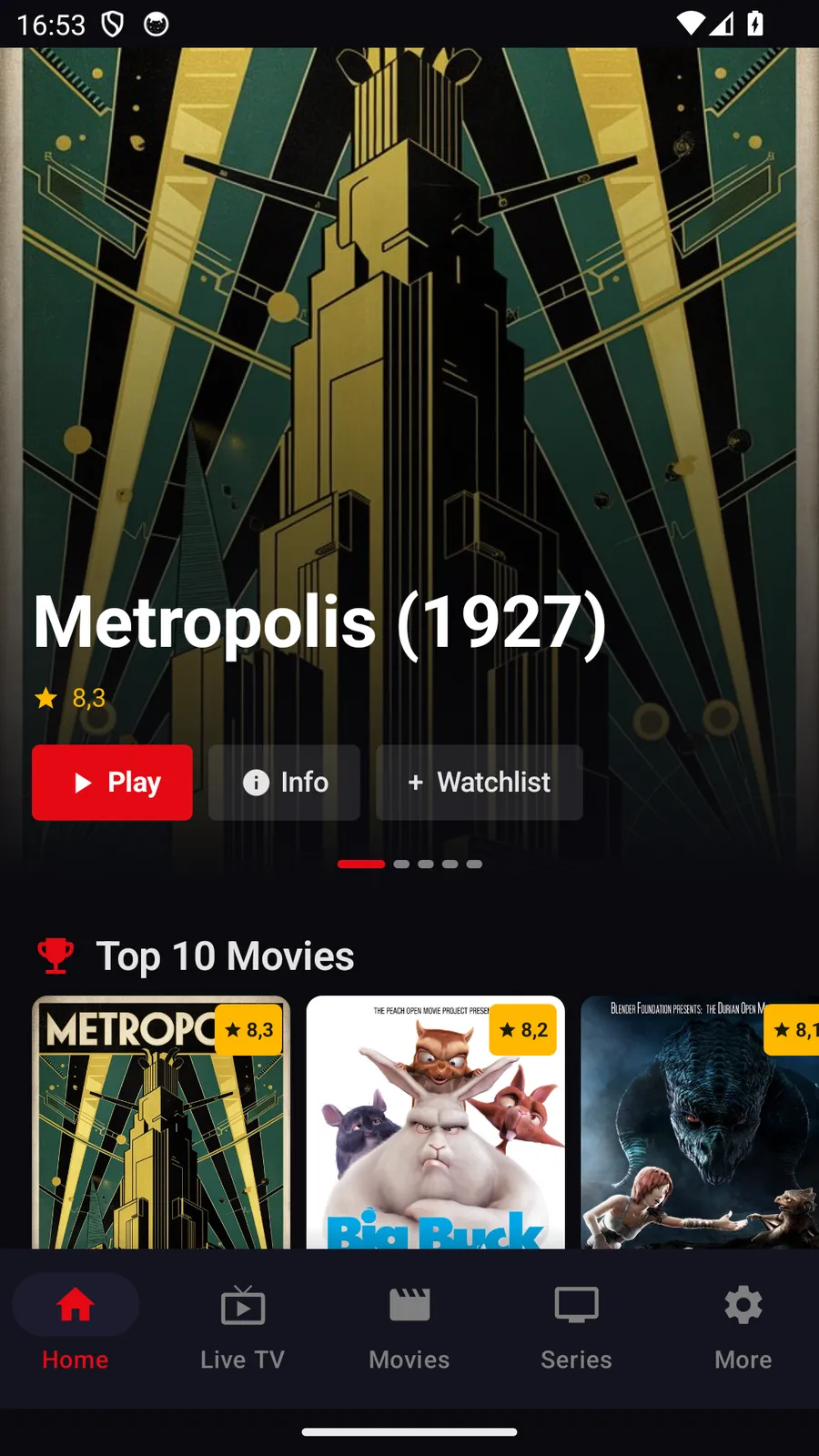
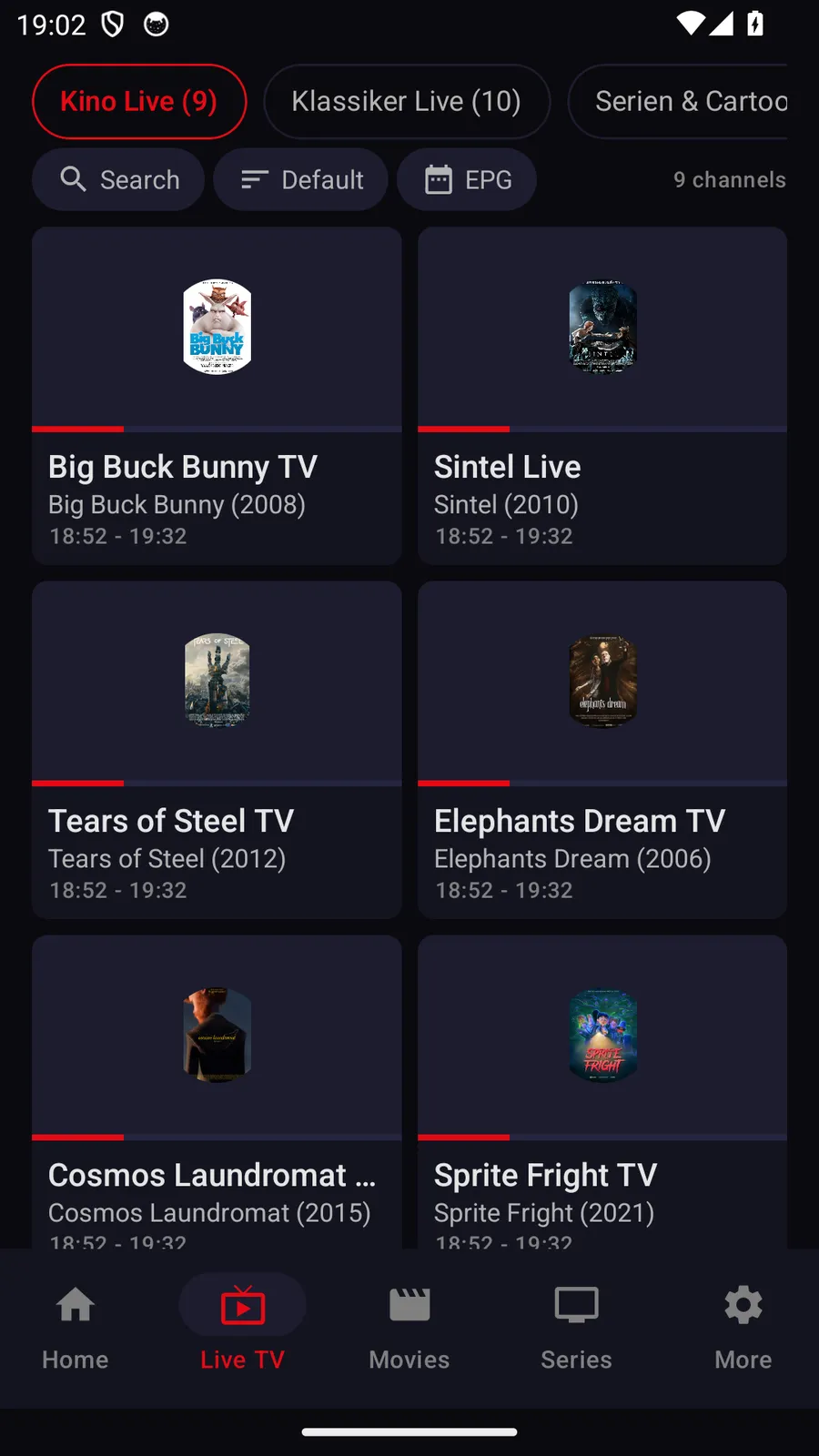
What TELOS offers on Android phones
- Provider proxy: TELOS can route requests to your IPTV provider through an HTTP proxy that you enter yourself (host, port, optional credentials). That helps if your provider is only reachable through a proxy. It applies only to requests to your provider (sign-in, programme data, images, playback), never to purchases or your account. If the setting fails, those requests fail: the app never silently connects directly.
- Downloads and offline viewing: Movies and episodes can be saved for later and watched offline; downloads can be limited to Wi-Fi. Whether a title can be saved depends on your source.
TELOS IPTV is a pure player. It contains and supplies no channels, movies, series or programme data; you need your own access from a provider and you are responsible for its lawfulness.
Decision guide: match the player to your situation
Start with your device and access method, then narrow the choice by how you watch. A television viewer usually benefits from a remote-friendly interface and clear guide settings. Someone maintaining several playlist sources should check the app's documented list management rather than assume it is included. Keep the provider's own access details and programme data separate from the player choice.
| Your situation | What to prioritize | Next check |
|---|---|---|
| You have an Android TV or Google TV television | TV-specific availability and remote navigation | Search the Play Store on the television and verify compatibility. |
| You have a Nvidia Shield or another box | Supported device version, network connection, decoder options | Confirm the app is intended for the box and test a short playback session. |
| Your provider supplied an M3U link | M3U import and refresh controls | Check that the app accepts a link or file in the supplied format. |
| Your provider supplied Xtream Codes details | Xtream setup fields and secure credential handling | Verify the server address and login details before saving. |
| Guide listings matter to you | EPG and XMLTV support, time zone controls | Confirm that guide data is available and set the correct time zone. |
| Playback buffers or disconnects | Network diagnostics and decoder choices | Compare connection paths and change one playback setting at a time. |
| You want TELOS on a television now | Current platform availability | TELOS is not yet available for Android TV; it runs today on Apple devices and Android phones and tablets. |
Common setup mistakes
A frequent mistake is choosing the wrong source type. An M3U playlist and Xtream Codes login are different setup paths; use the one matching the details you received. If setup fails, check for spaces, missing characters, or a changed source address before reinstalling the app.
Another common issue is expecting guide data to appear automatically. An EPG depends on available programme data, and XMLTV sources may need to be entered separately. A wrong time zone can make a valid guide look incorrect. Refresh the guide after checking the source and time-zone settings.
Do not confuse a phone app with a TV app. Store availability and interface support can differ by device. Likewise, successful sideloading does not guarantee that the app supports remote control or television playback. Check the device listing and developer documentation.
When troubleshooting Buffering, avoid changing network, playlist, and decoder settings all at once. Note the symptom, test another entry, and then alter one setting. If only one source or programme fails, the issue may be outside the player. For more help, consult the buffering guide.
TELOS IPTV
TELOS IPTV is a player for your own access. Its supported devices today are iPhone and iPad, Apple TV, Android smartphones, and Android tablets. TELOS is not yet available on Android TV or Google TV; TV versions are in preparation.
On Android smartphones and tablets, TELOS supports a user's own Xtream source, live TV, films, and episodes. Its guide is available when the provider supplies programme data. The app also supports downloading films and episodes for later offline viewing, depending on the source and title; Android downloads can be set to use Wi-Fi only, and child and PIN rules apply.
TELOS can route requests to your IPTV provider through an HTTP proxy that you enter yourself (host, port, optional credentials). It applies only to requests to your own provider and fails closed if the proxy setting fails. It does not make TELOS available on Android TV.
TELOS IPTV is a pure player. It contains and supplies no channels, films, series, or programme data; you need your own access from a provider and are responsible for its legality.
Current device status of TELOS IPTV: Which platforms are available today and what works on which device is listed at telosiptv.com/devices.