
Start here: the official browser option
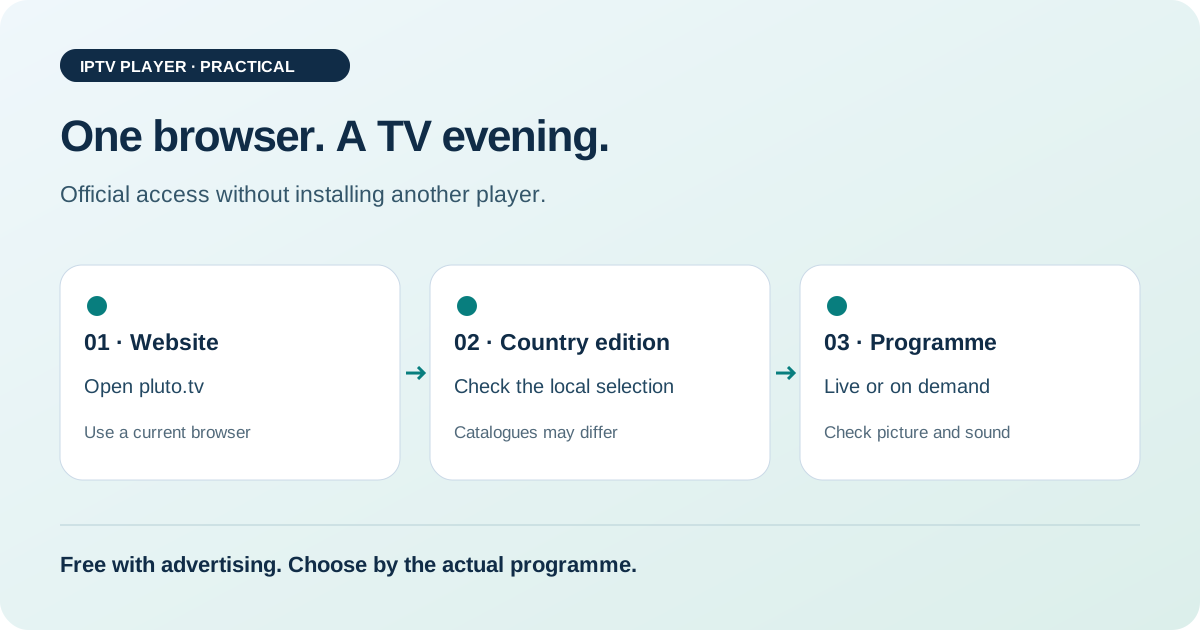
Open pluto.tv in a current browser and choose a programme available in your country. Pluto lists web browsers as an access option in its supported-platforms overview. You do not need to install a separate Pluto app for this route. Check which programmes and features appear in the edition that opens for you.
The main difference from a configurable IPTV player is that Pluto TV provides its own catalogue. You cannot simply add your existing M3U playlist or another TV provider’s login. If you only want to watch something from Pluto’s catalogue, the browser is an easy first try. If you want to manage your own sources, you need a player designed for that.
What free FAST TV means
FAST stands for Free Ad-Supported Streaming Television: television funded by advertising rather than a separate programme fee for viewers. Pluto describes its service as free and ad-supported. That does not mean playback has no ad breaks or that every film you want will be available. Judge the service by the programmes actually offered, not by a large channel count with no clear region.
You still need internet access and a suitable device. A data cap may matter if you watch for a long time. This article deliberately gives no universal data use per hour: the actual amount depends in part on video quality. For now, ask whether the current catalogue covers what you want to watch and whether you are comfortable with the ad breaks shown.
Start watching in four steps
- Open the official address: Type pluto.tv directly. Avoid search ads or third-party download pages that ask for an extra file to watch in a browser.
- Check the edition shown: Look for the language, available programmes, and any country notice. A screenshot from another country does not promise the same catalogue where you are.
- Choose a programme: Start a live channel shown on the page or an on-demand title. If playback starts paused, press the visible play button.
- Check picture and sound separately: Check the volume, mute setting, and selected audio output. Let the page play for a few minutes before judging its reliability.
For a first try, a regular computer browser is usually easier to use than a TV web interface controlled by remote. The official platform overview remains the reference. Successful playback on a computer does not prove that every smart-TV browser supports the same features.
Live channels and on-demand titles are different
A live channel follows a continuous programme schedule. You choose the channel and join at the point currently being shown. An on-demand title is selected from a catalogue and usually starts with the title you chose. The categories and controls you actually see depend on the current interface and regional offering.
This distinction helps prevent false expectations about pausing, restarting, or finding a particular episode. Read the information shown for each title rather than assuming it has the same features as another streaming subscription. If you want to watch something at a particular time, check availability close to then. A saved recommendation may be out of date even if the website itself still works.
Browser, app, or IPTV player: which suits your goal?
| Your goal | A sensible first option | What to check |
|---|---|---|
| Watch a Pluto programme directly | Official web access | Is the programme available in your edition? |
| Watch regularly on a TV | Check for an official app for your exact TV | Model, store, and remote control |
| Manage your own playlist | A suitable IPTV player | Playlist format and your right to access the source |
Use the browser to decide whether Pluto’s catalogue suits you. If you like it, check whether an official TV app makes regular viewing easier. If you do not, another installation route will not solve the content question. There is no need for a shortcut through unknown playlist websites. Find more official alternatives in our free live TV directory.
If video will not start: narrow down the cause
Try a second programme in the catalogue. If it works, the problem may be limited to one channel or title. If nothing plays, reload the page once and check for a browser update, mute settings, and an error message. Note the wording before changing several settings. A black video area alone does not prove a general internet problem.
If extensions might affect playback, compare with a fresh browser profile without extra extensions. Do not change every privacy or security setting at once. One controlled comparison gives you better information. Blocked resources can sometimes affect an ad-supported service, but that does not mean every playback problem is caused by an ad blocker. For persistent issues, contact official Pluto support and include your device, browser, and the error message.
If playback stutters instead of stopping
Stuttering is different from a channel that will not start. Check whether downloads or other streams are using the connection. Compare on the same device and in the place where you normally watch. A good result on a phone next to the router says little about how stable the browser connection is at the other end of the home.
Our speed test can supplement a connection check, but it does not replace watching the actual stream for a while. Note whether the problem happens only at certain times or with other official video services too. If only one programme is affected, do not immediately buy new hardware. For a systematic check, use our buffering guide. It separates the source, playback device, and home network.
TV controls matter
Browser access on a computer is not automatically a convenient option for a TV. Check official app availability for your TV model. Then look for readable channel names, clear remote focus, and an easy way back to the programme. You can try these things during your first viewing instead of relying on an abstract app comparison.
If you connect a computer to the TV over HDMI, check the selected TV input and the computer’s audio output. A browser video may still play through the laptop speakers. That does not prove the service is at fault. For picture loss through an HDMI chain, see our guide to a black screen and HDMI. Treat that connection problem separately from a programme that is unavailable in your region.
For your next visit, bookmark the official website. Also note the name of a channel or title you found instead of saving only a long search query. When you return, you can check whether it is still available in your edition. For shared devices, note which browser and audio output last worked. If problems recur, a brief note with the date, device, and observed issue is more useful than a blanket judgement about the whole service. Do not immediately clear all browser data: that can affect logins on other websites and makes comparisons harder if you did not first record what you wanted to test.
FAQ: Pluto TV without an app
Can I open Pluto TV in a browser?
Yes. Pluto lists web browsers as an access option. Start at the official website and check the available catalogue there. You do not need to install another player for this browser route.
Why can’t I find a recommended channel?
The catalogue may differ by country and change over time. Check which edition a recommendation refers to. A missing programme is not automatically a technical problem with your device.
Is Pluto TV the same as an M3U player?
No. Pluto provides its own streaming catalogue. An M3U player handles a compatible source that you provide. Do not confuse official Pluto access with adding someone else’s playlist.
Do I need an APK for browser access?
No. For this route, open the official website in a browser. You do not need a download from a third-party portal. For a TV app, use the official installation route for your device.
Is the browser always better than the app?
That depends on your device and how you watch. A browser is an easy way to start on a computer; an officially supported TV app may be easier to use with a remote. Compare the steps on your own device.
Two steps for your next viewing session
Sources and review date
Sources checked on 25 October 2026. Editorial guidance; no original device measurements.