IPTV Player Fire TV Stick: Installation and Setup Guide
The best IPTV player for a Fire TV Stick is one that supports your own playlist or Xtream Codes access, works with the device’s remote, and is available through a trustworthy installation route. A player does not provide channels or subscriptions; you need a lawful account or playlist from your own provider.
This guide explains how to compare Fire TV IPTV players, install an app from the Amazon Appstore or by sideloading, enter M3U or Xtream details, and troubleshoot buffering. TELOS IPTV is not yet available for Fire TV, so this guide does not present it as a Firestick option.
Fire TV and the Fire TV Stick are technically based on a modified version of Android, so many Android IPTV players can generally be used on them as well. However, the Amazon Appstore does not list every Android app, which means some players are installed by sideloading their APK through the free “Downloader” app.
Everything is controlled using the Fire TV remote, so a remote-optimized interface with clear navigation through channel lists and the EPG is important, rather than a smartphone view that has simply been scaled up.
As with Android, your IPTV provider’s credentials are entered through an M3U playlist URL or Xtream Codes login. Which of the four players featured here are listed in the Amazon Appstore and which require sideloading may change. If in doubt, search the Appstore first and use Downloader if the app is unavailable.
Players compared
| Player | Price | Platforms | Rating | Users praise |
|---|---|---|---|---|
 TiviMate IPTV Player TiviMate IPTV Player |
Free | Google Play | Usability praisedEPG praised | |
 XCIPTV PLAYER XCIPTV PLAYER |
Free | Google Play | Usability praisedStability praised | |
 Televizo - IPTV player Televizo - IPTV player |
Free | Google Play | Usability praisedValue for money praised | |
 iMPlayer TV IPTV Player iMPlayer TV IPTV Player |
Free | Google Play | Usability praisedStability praised |
Pros and cons
- Advantage: interfaces designed specifically for remote control, with large text and clear focus navigation.
- Advantage: sideloading through the Downloader app is officially supported by Amazon and straightforward, with no need to bypass security restrictions.
- Advantage: the same players usually also run on regular Android TV boxes, so settings can be transferred across devices.
- Keep in mind: not every player remains permanently listed in the Amazon Appstore, so a sideloading step may be required.
- Keep in mind: older Fire TV generations with limited memory may respond noticeably more slowly with very extensive channel lists.
Top 3 recommendations
TiviMate is one of the most widely used choices on Fire TV because its interface was designed from the ground up for remote control. Best for users who want a large, easy-to-navigate channel list with support for multiple playlists.
XCIPTV Player also runs reliably on Fire TV devices and offers a control layout similar to its Android smartphone version. Best for users who already know the player from their smartphone and want to continue using it on their TV.
Televizo stands out with a structured EPG timeline that is easy to browse with the Fire TV remote. Best for users who consider the programme guide especially important.
How to set it up
Setting up a Fire TV IPTV player as an example
- First, search for the desired player in the Amazon Appstore on the Fire TV device and install it directly if it is listed there.
- If the app is not listed, install the free “Downloader” app from the Amazon Appstore and use it to download the APK file from the official developer website.
- Before sideloading, open the Fire TV settings and go to “My Fire TV → Developer Options” to allow installation of apps from unknown sources once.
- Open the player and choose the access method: Xtream Codes login or your provider’s M3U playlist URL.
- Enter your credentials, let the channel list load and, if available, add the EPG source.
- Mark favourites and sort channel groups so navigation with the remote remains clear.
Frequently asked questions
Which IPTV player works on a Fire TV Stick?
Can I use an M3U playlist on Fire TV?
What is the difference between M3U and Xtream Codes?
Why does IPTV keep buffering on Fire TV?
Is TELOS IPTV available on Fire TV?
Does an IPTV player include channels or a subscription?
Do I need the Downloader app for every IPTV player on Fire TV?
Is sideloading through Downloader safe?
Do Android players work 1:1 on Fire TV?
How do I find the installed app again on the Fire TV home screen?
What should I do if the player does not start after sideloading?
Tips & legal M3U sources
The Fire TV Stick receives power via USB, and insufficient power, such as from the TV’s USB port instead of the power adapter, can cause instability. The original power adapter is therefore recommended. For network connectivity, as with other streaming devices, a LAN adapter or 5 GHz Wi-Fi provides the most stable results, especially for HD content. If the Stick is several rooms or walls away from the router, a Wi-Fi repeater or mesh access point near the device’s location can provide noticeable improvements.
Updated: Oct 18, 2026
Quick answer: which IPTV players run on Fire TV Stick?
Choose a Fire TV IPTV Player that is compatible with your Fire OS device, accepts the connection type supplied by your provider, and has controls that are comfortable with a television remote. Check the app’s current Amazon Appstore listing first. If it is not listed there, sideloading may be possible, but it requires extra care and does not guarantee compatibility.
There is no universal best IPTV Player Firestick app for every setup. Some players accept an M3U playlist link or file; others use Xtream Codes credentials. Before installing, confirm which format your provider supplies, whether it includes EPG guide data, and whether the app’s listing explains its source and permissions. A player is software for accessing your own playlist; it is not an IPTV subscription or content service.
Use the player comparison to compare options and the IPTV player hub to find platform guides. For lawful use, connect only a playlist or account you are entitled to access.
Fire TV devices: Stick Lite, 4K, 4K Max and Cube
Fire TV Stick Lite, Fire TV Stick 4K, Fire TV Stick 4K Max and Fire TV Cube differ in hardware and connectivity. Exact specifications can change by model and generation, so check Amazon’s device page for the unit you own. For IPTV playback, focus on practical fit: available storage, network quality, HDMI and power setup, and how the remote feels when navigating long channel lists.
Storage can affect whether there is room to install an app and keep other apps available. If the device reports low space, remove apps you no longer use through the device settings rather than deleting unfamiliar files. Wi-Fi performance depends on the device’s location, walls, interference and router placement, not only the product name. The Cube may be placed differently from a stick attached directly behind a television, which can affect signal conditions in a particular room.
The remote matters when browsing categories, entering credentials and moving through an EPG. A player designed for a touch screen may be awkward on a television even if it installs. Check whether focus moves clearly between buttons and whether the app provides a remote-friendly on-screen keyboard. If you are choosing between a stick and a Cube, compare their current device specifications and your actual network conditions rather than assuming one model guarantees stable streaming.
Installation: Amazon Appstore or Downloader sideloading
The Amazon Appstore is the simplest route when the app is listed for your Fire TV model and region. Search the exact app name, review the publisher and listing details, and install from the store. Store availability and device compatibility can change, so do not rely on an old download link or a listing for another platform.
If an app is not in the Amazon Appstore, sideloading means installing an application package from outside the store. Downloader is commonly used as a download utility, but the app’s presence in a utility store does not verify the safety of a separate package. Use only a source you trust, verify that the package is intended for your device, and avoid packages shared through unsolicited links.
- On the Fire TV home screen, open Find or Search and look for the app. Check the publisher and details before installing from the Amazon Appstore.
- If sideloading is necessary, install Downloader from a source available on your device and verify its publisher.
- Open Fire TV settings and locate the developer or app-install permissions. Menu names vary by Fire OS version. Enable installation permission only for the utility you intend to use, if prompted.
- Enter the trusted package source in Downloader, check the address carefully, and download the package.
- Review the requested permissions and package identity before choosing Install. Cancel if the source, app name or permissions do not match what you expect.
- After installation, disable the temporary install permission if it is no longer needed, then open the player and configure your own access.
Do not enter provider credentials into an app whose publisher or source you cannot verify. Avoid installing modified packages or granting broad permissions without a clear reason. See the Fire TV player guide for related setup information.
Set up M3U and Xtream on Fire TV
M3U is a playlist format that can point a player to channel or media entries. A provider may supply a playlist link or a file. Xtream Codes refers to a login method that typically uses details such as a server address, username and password. The labels and required fields vary across player apps, so use the connection details and instructions supplied by your own provider.
Before setup, confirm that you have the correct format. If the app asks for an M3U URL, an Xtream username and password will not work in that field. If it requests Xtream details, do not paste the entire M3U link into the server field. Enter the information privately; do not post credentials in support forums or screenshots.
- Open the installed player and choose its add playlist, add source or login option.
- Select M3U URL, M3U file or Xtream Codes according to the details you received.
- Use the Fire TV on-screen keyboard to enter each value. Check letter case, punctuation, spaces and characters that look alike, such as zero and the letter O.
- For a server address, include the full address and port exactly as provided. Do not add extra spaces or change the protocol.
- Save the source and wait for the player to load the playlist. If the app offers an EPG field, enter guide information only if your provider supplied it.
- If loading fails, recheck the format and spelling, then confirm with your provider that the access is active and intended for use in a player.
Remote typing is error-prone. Enter one field at a time and review it before saving. QR setup, phone-assisted entry and account transfer vary by app; use those options only when the app itself documents them. For playlist formatting checks, see the M3U validator.
How to improve stable streaming on a Fire TV Stick
Buffering can come from a weak or congested Wi-Fi connection, router placement, a temporary provider interruption, an overloaded device or an issue with a particular stream. Start with the same channel or title on another device if available, then check whether other internet services work on the Fire TV. This separates a local network problem from a source-specific problem.
Try the Wi-Fi band that provides the more reliable connection in your room. A higher-frequency band may be faster nearby but can be more affected by walls; a lower-frequency band may reach farther but can also face congestion. Move the router into an open, central location where practical. An Ethernet adapter compatible with your Fire TV setup can provide a wired connection, but the adapter and network still need to be configured correctly.
| Symptom | Possible cause | What to try |
|---|---|---|
| Buffering on many channels | Weak Wi-Fi, congestion or router issue | Test near the router, try another Wi-Fi band, restart the router, or use a compatible Ethernet adapter. |
| Only one channel buffers | Source or provider-side interruption | Try another item and ask your provider whether that source is available. |
| Playback stops after a period | Connection drop, app issue or device resources | Reopen the app, check network stability and close other running apps. |
| Player behaves slowly | Low free storage or accumulated app data | Review device storage and clear the player cache in Fire TV app settings if available. |
| Frequent connection errors | Incorrect login, network interruption or unavailable access | Recheck the entered details and confirm access with your provider. |
If the player offers a buffer-size setting, change it only when you understand the trade-off: a larger buffer may take longer to begin playback and uses more temporary data, while a smaller one may be less tolerant of brief network variation. Test one change at a time. More practical help is available in the guides to stable IPTV playback and fixing IPTV buffering.
Remote control: EPG, favourites and channel lists
A Fire TV remote works best with a player that makes the selected item easy to see. Before committing to an app, check whether the remote’s directional buttons move predictably through the playlist, whether Back returns to the previous level, and whether the on-screen keyboard allows reliable text entry. These details matter most when browsing a large M3U playlist or correcting a login.
EPG means electronic programme guide. It displays programme information when the playlist or provider supplies compatible guide data and the player can load it. A channel list can still work without an EPG, but programme descriptions and schedules may be missing. If the guide is blank, check the player’s EPG settings and ask the provider whether guide data is included and current.
Favourites can make a long list easier to browse if the player supports them. Organize channels only after the playlist has loaded correctly, and check whether the app saves those changes on the device or within the playlist. Do not assume that favourites or viewing history transfer to another player or device. For an overview of free options, see free IPTV players.
Criteria for choosing a Fire TV IPTV player
Compare apps against the way you plan to use them. The app should clearly identify its supported playlist or login formats, provide a usable television interface and explain where it comes from. A listing that is vague about the publisher or requests unrelated permissions deserves extra scrutiny. Compatibility with your Fire TV model and current software should be confirmed before entering account details.
| Criterion | What to check | Why it matters |
|---|---|---|
| Installation source | Amazon Appstore listing or trustworthy sideload source | Helps you assess publisher identity and package provenance. |
| Playlist format | M3U link/file, Xtream Codes, or both as explicitly documented | Matches the app to the access details you have. |
| Remote navigation | Visible focus, sensible Back behavior, usable keyboard | Makes setup and browsing practical on a television. |
| EPG support | Guide support and clear requirements for guide data | EPG display depends on compatible data being supplied. |
| Stability controls | Network guidance, cache controls, documented buffer settings | Offers sensible troubleshooting when playback is unstable. |
| Privacy and permissions | Publisher, privacy details and requested device access | Reduces the chance of exposing credentials to an untrusted app. |
Use these criteria alongside the IPTV player comparison. Feature claims should be checked against the app’s current listing because availability can differ between platforms and change over time.
TELOS IPTV and Fire TV
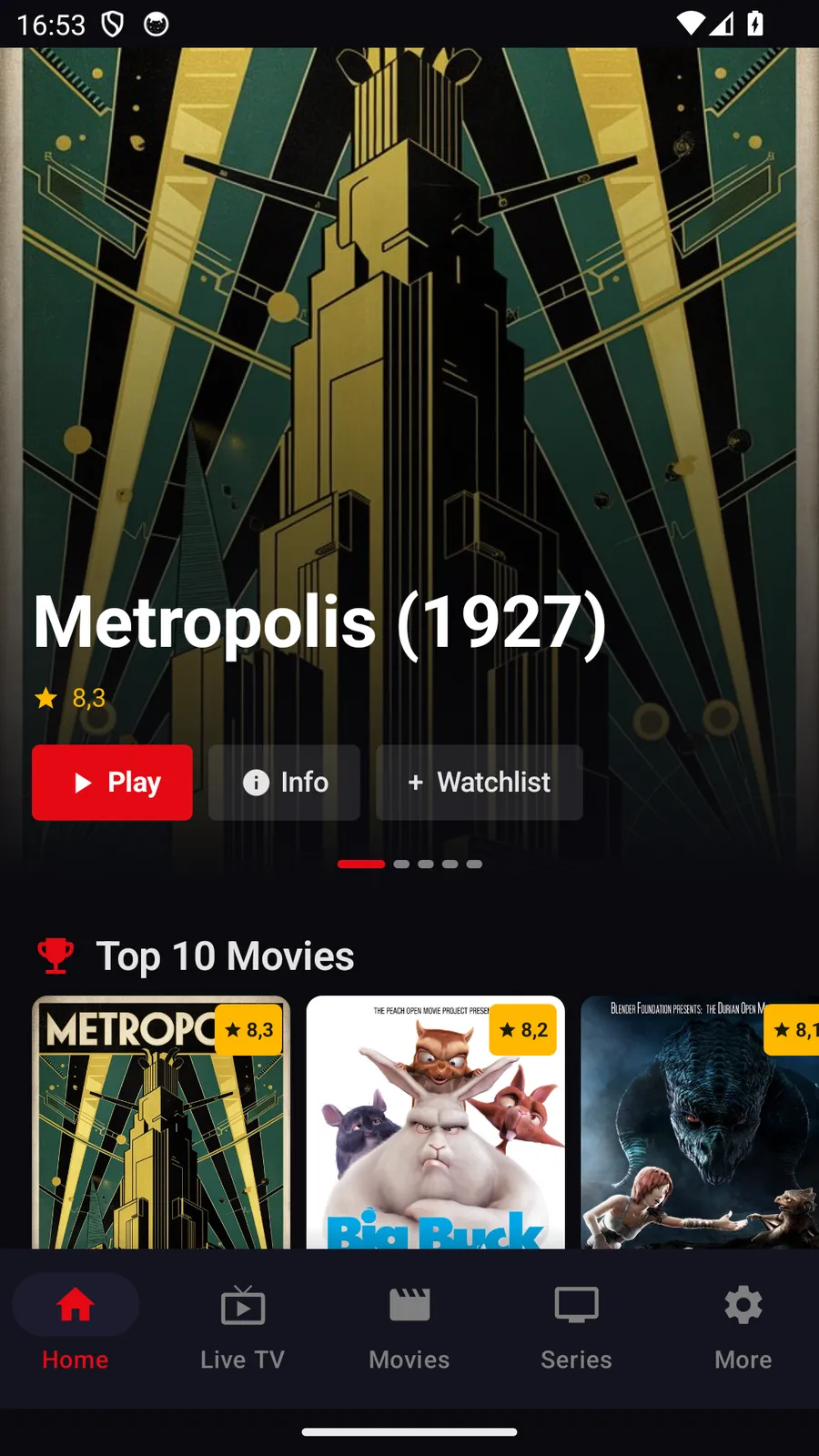
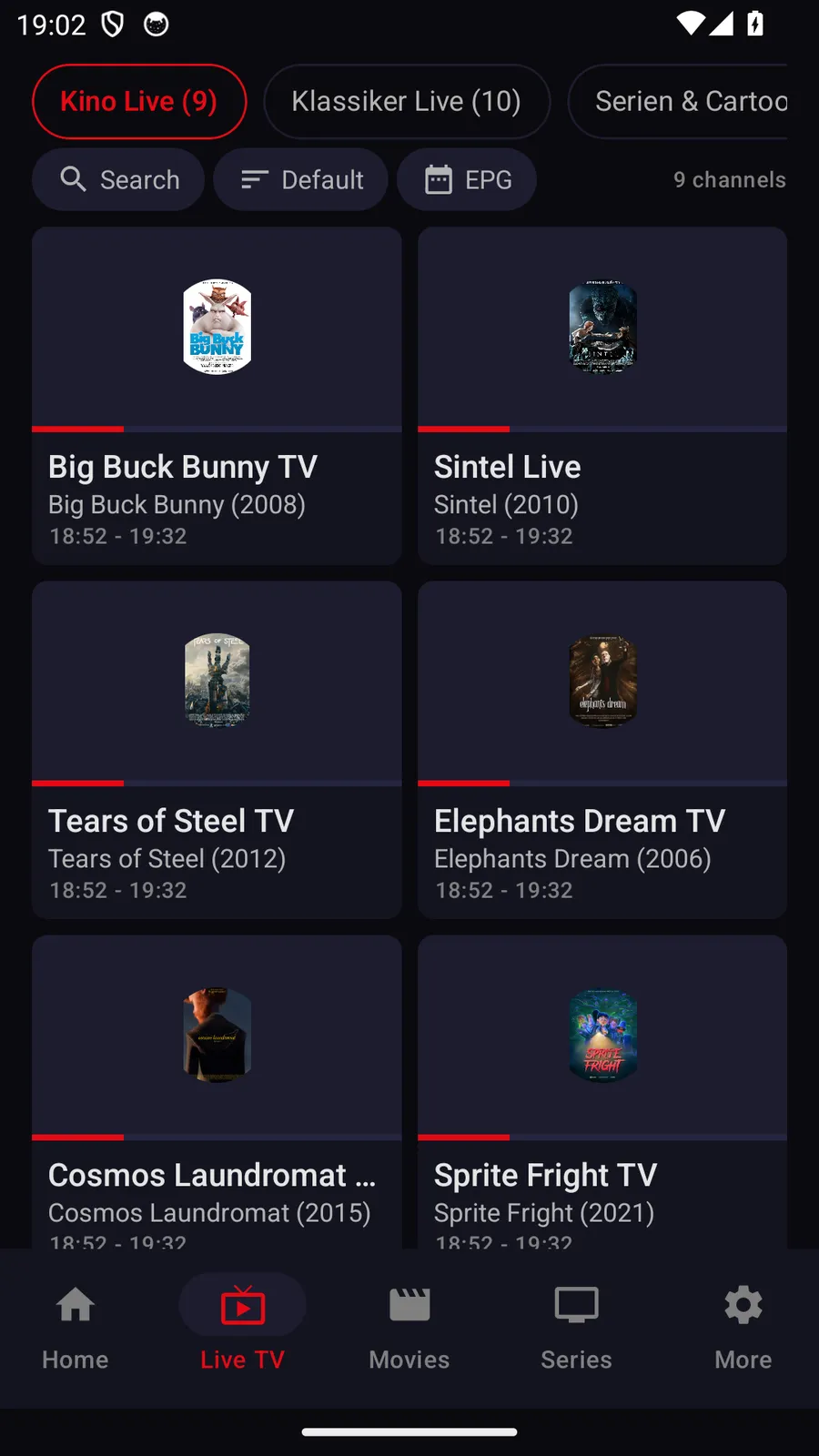
TELOS IPTV is our own player. There is no published version for Fire TV yet; one is in the works. Today TELOS runs on iPhone and iPad, on Apple TV and on Android phones and tablets. If you would like to see how the app is built, you can try it there free of charge.
What TELOS offers on Android phones
- Provider proxy: TELOS can route requests to your IPTV provider through an HTTP proxy that you enter yourself (host, port, optional credentials). That helps if your provider is only reachable through a proxy. It applies only to requests to your provider (sign-in, programme data, images, playback), never to purchases or your account. If the setting fails, those requests fail: the app never silently connects directly.
- Downloads and offline viewing: Movies and episodes can be saved for later and watched offline; downloads can be limited to Wi-Fi. Whether a title can be saved depends on your source.
TELOS IPTV is a pure player. It contains and supplies no channels, movies, series or programme data; you need your own access from a provider and you are responsible for its lawfulness.
Choose by scenario
The right setup depends on your device, the access format you already have and how you prefer to navigate. A Fire TV IPTV Player should fit the source details rather than force you to convert or expose credentials. If the Fire TV store listing does not clearly establish compatibility, pause and check with the app publisher before sideloading.
| Your situation | Practical choice | Check first |
|---|---|---|
| Your provider supplies an M3U link | Choose a player that documents M3U URL support. | Whether the app accepts a link, a file, or both. |
| Your provider supplies Xtream details | Choose a player that explicitly supports Xtream Codes login. | Correct server address, username and password fields. |
| You want the simplest installation | Look for a compatible Amazon Appstore listing. | Publisher, device compatibility and current listing. |
| The app is unavailable in the store | Consider sideloading only from a verified source. | Package identity, permissions and Fire OS compatibility. |
| You primarily watch on Apple or Android devices | Compare platform-specific options, including TELOS where live. | Current store features for that exact platform. |
If you are also comparing paid editions of other apps, consult the neutral guide to TiviMate Premium cost. Compare current terms directly in each app listing; this page does not recommend an IPTV provider or subscription.
Common Fire TV player problems
If an app does not appear in search, confirm that you are viewing the Amazon Appstore on the Fire TV and that the listing is available for your region and model. Search results can differ by device. Do not assume that an Android phone package will work on Fire TV just because both devices use Android-based software.
If installation fails, check available storage and restart the device before trying again. For sideloading, make sure the package download completed and that the install permission applies to the downloader you used. If a package requests permissions that do not fit a media player, cancel and verify the source.
If login fails, confirm whether the app expects M3U or Xtream Codes, then carefully re-enter each field. If the playlist loads but channels do not play, try another entry and verify that the provider account is active. A blank EPG usually points to absent, incompatible or outdated guide data rather than a Fire TV setting. For buffering, use the troubleshooting table above and change one network or player setting at a time.
TELOS IPTV
TELOS IPTV is a media player for access supplied by the user. It is currently available on iPhone and iPad, Apple TV, and Android smartphones and tablets. TELOS for Fire TV is not yet available; the TV versions are in progress, with no date stated.
TELOS IPTV ist ein reiner Player. Er enthaelt und liefert keine Sender, Filme, Serien oder Programmdaten; du brauchst einen eigenen Zugang bei einem Anbieter und bist fuer dessen Rechtmaessigkeit selbst verantwortlich.
For platform-specific details, visit the iPhone and iPad guide or the Android guide.
Current device status of TELOS IPTV: Which platforms are available today and what works on which device is listed at telosiptv.com/devices.
Sources and reproducible checks
Store ratings describe feedback from store users. The review texts we classify are a separate sample; their number is not the denominator of the rating. Neither dataset is our own device test.
- Store export generated
- Latest dated store observation in this export
- 2026-10-18
- Curated feature matrix source date
- 2026-07-23
These dates refer to different sources. A new export does not recheck the curated features. Older feature, price and availability statements need a fresh check in the official listing for your device and country.
Store screenshots are supplied by the app publishers, not captured in our own tests. Store presence alone does not establish support for every TV model, input format or playback setup. TELOS belongs to this website operator; its availability must also be checked for the exact platform.
Check one variable at a time: validate a nonprivate playlist sample, measure on the actual playback device, then compare the official device and input requirements. Record device, app version, date and the result before changing another setting.